
Download


Related Links
- Gallery Plug-in for Lightroom Home Page
- Gallery 3 Software
- Purchase and Registration
- Installation Instructions
- FAQ
- Usage
- Support and Troubleshooting
- Latest News
Purchase
| License Type: | Single User License |
| Price: | $15 USD |
Gallery
- I keep getting errors about the REST API Path being invalid. What do I do?
-
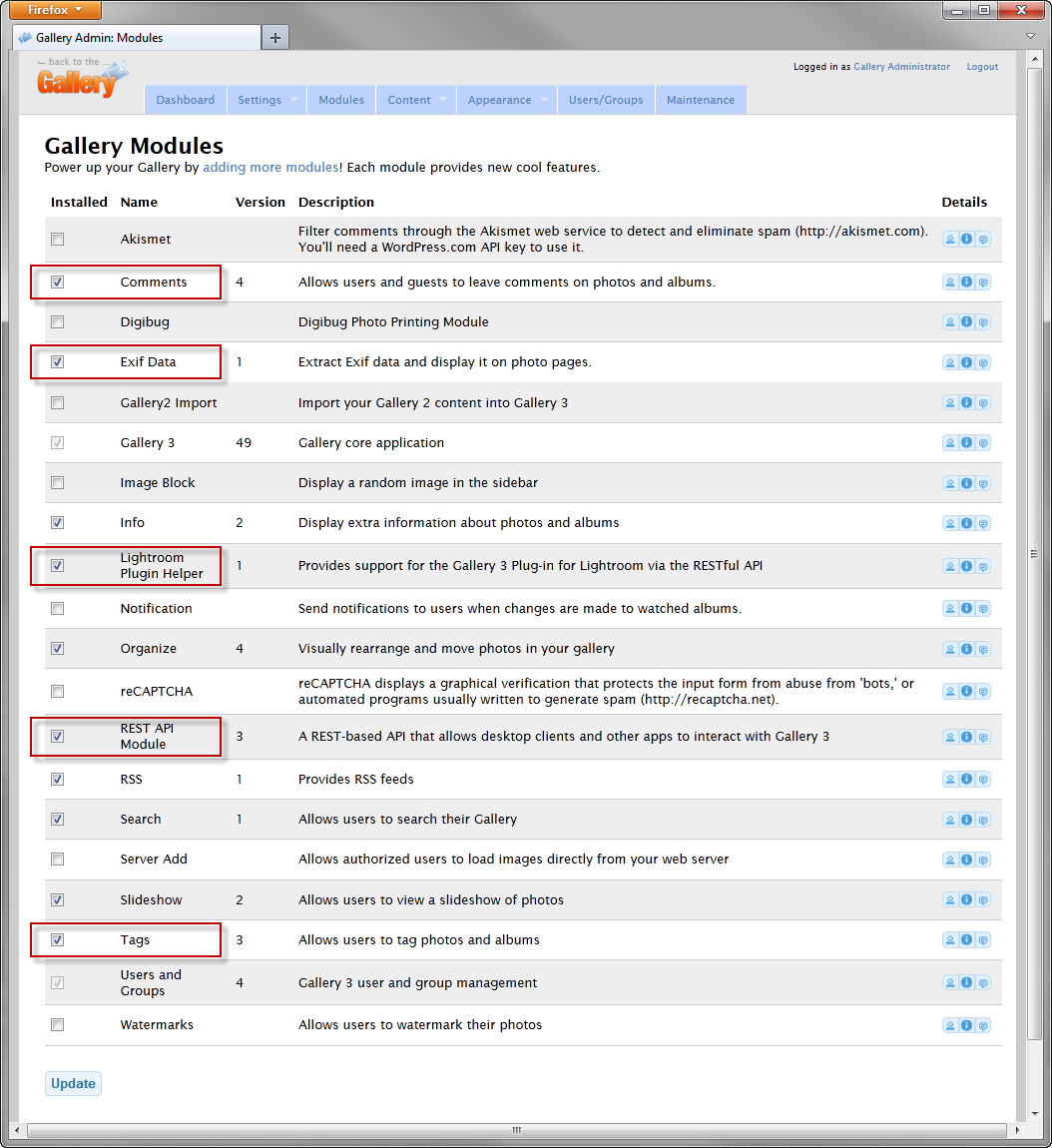
There are two common reasons for this error. First of all, check if the REST API module is enabled (along with other three modules listed in the Requirements section) - log in as administrator into your Gallery system and navigate to the Modules screen. Make sure each of the required modules is selected with a check mark next to their name.
Second, make sure you have entered the REST API path correctly. The default path for the majority of Gallery installations is /index.php/rest, however if you have redirection rules hiding the "index.php" part from the URL, then your path would be /rest.
You can find out if you should include "index.php" in the REST API path by clicking the "Home" button in your Gallery. If the URL in the address bar shows "index.php", then your REST API path is definitely /index.php/rest, otherwise you have redirection rules in place - the REST API path is /rest.
Check if the REST API is working by entering the following URL in your web browser:
http://<my_domain>/<optional_gallery_app_path>/<REST API path>
In response you should get a blank page with two square brackets [] in the upper left corner, and the URL in your address bar should remain unchanged (to make sure no additional redirects take place). - Why am I getting upload errors?
-
First things first - make sure you can upload large photos using the Flash uploader in Gallery (the Add Photos link). If your uploads fail there, then it's definitely a configuration issue. Most likely, the memory limit for PHP is set too low so the Gallery application crashes when it attempts to process the uploaded image. Edit your php.ini file and set the memory_limit parameter to at least 64M:
memory_limit = 64MIf your PHP installation has the suhosin patch, the memory limit must be increased in the suhosin.ini configuration file as well :
suhosin.memory_limit = 64MRestart Apache and try uploading again using the flash uploader.
If you are able to upload using the flash uploader, try uploading from Lightroom using the Gallery plug-in.
Another frequent cause of upload and connection related errors is the mod_security module. mod_security is an Apache module that provides intrusion detection and prevention for web applications. It aims at shielding web applications from known and unknown attacks, such as SQL injection attacks, cross-site scripting, path traversal attacks, etc. This all sounds good, however, when poorly configured mod_security can also shred totally innocent and legitimate requests. When this happens you can experience all sorts of trouble ranging from server errors ("HTTP Error 400 Bad Request" and "HTTP Error 500 Inernal Server Failure") to seemingly random alterations and disappearance of API requests.
If you have your own server and can configure it at your will I recommend disabling mod_security, at least to check if things start working as expected once your take mod_security out of the equation. Then you can work on configuring it correctly so it does not interfere with the Gallery API.
Things starting to look more bleak if you are on a "shared hosting" plan where your provider controls Apache and PHP configurations. Some providers would work with you and make reasonable configuration changes, some (particularly those who provide free or nearly free hosting) would not change a thing. My only advise to you in this case is that you look for alternatives.
- What is the maximum file size I can upload?
-
The maximum file size the Gallery application can process depends on your PHP settings.
If you are uploading very large photos (larger than 3600px long @ 100% JPEG quality - not sure why you'd want to do that), you need to increase the post_max_size parameter, which by default is set to 8MB.post_max_size = 16MIf your PHP installation has the suhosin patch, the post limit must be increased in the suhosin.ini configuration file as well:
suhosin.post.max_value_length = 16M - What image settings should I use?
-
I recommend the following combo:
- JPEG Quality: 80-85%
- Resize to Fit (checked): Long Edge, 1200-1600 pixels
- Sharpen For (checked): Screen, Amount: Standard

This combination produces good quality JPEGs for viewing purpose, typically 600 - 900 KB in size.
- Do I need to make any changes in my Gallery installation?
-
As explained in the Requirements section on the plug-in's home page, the following modules must be enabled using the Gallery admin interface (click the image to enlarge):
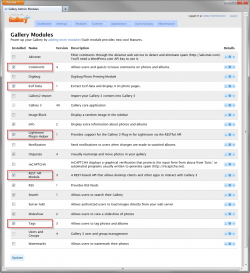
The Lightroom Plugin Helper module can be downloaded using the link in the side bar.
- What do Gallery Options do?
-
- Manage only my own albums - useful when you have multiple users uploading their photos to a single Gallery hosting environment. When this option is selected, each user will be access only the album they created.
- Hide albums I have no access to - when this option is selected the plugin won't show albums you have no "edit" and "create" permissions for.
- Validate "Image Sizing" settings before the upload - Enables the plug-in to make sure the size of output images is within the reasonable range of 500 - 10000 pixels. Smaller images will be look funny, and larger will take a very long time to upload and most likely would simply cause out-of-memory errors on the server. However, for practical reasons you should keep Gallery uploads within even a stricter range of 800 - 1600 pixels.
- Create develop snapshots on Export / Publish - with this option selected, each export or publish operation creates a Develop Snapshot (available in Lightroom on the Snapshots panel within the Develop module). This option is useful only if rely on Snapshots in your workflow.
- Reduce memory usage on the server by requesting albums N at a time - this option helps overcoming the dreadful "HTTP Error Code 500" which may happen when you have large albums containing hundreds of photos. Simply by requesting the album list in smaller "chunks" help to keep memory usage on the server under control.
- Throttle interval for server requests - This option is useful when performing massive updates on the server which can bog it down and possibly affect other users. With the throttling option enabled you can spread your server request over a larger length of time, so the server gets a chance to process other users' requests.
- I get a "catalog update failed" when trying to install an update. How to fix this?
- This error is sometimes generated by Lightroom when you install a new version of the plugin and the plugin attempts to update its custom metadata fields in the catalog. Sometimes this can be solved by disabling and then re-enabling the plugin you are trying to update (use the Status panel in the Lightroom Plug-in Manager to do so). If that does not work, disable all available plugins, then re-enable them one by one.
- I get an error message "The certificate authority is invalid or incorrect".
- This error is raised by Lightroom when you attempt to establish a HTTPS connection with a server using an invalid or self-signed certificate. Visit your secure site in the web browser then explicitly accept the invalid certificate. The system will put the certificate in the trusted store and will consider it valid.
Ask alloyphoto@alloyphoto.com, so I can improve and expand this section.


