
Disclaimer
The following instructions use the MobileMe Gallery plug-in for illustration purposes, however the process is nearly identical for other plugins as well.
For the plug-in you are installing, all references to MobileMeExport.lrdevplugin and MobileMe Gallery should be treated as follows:
| Plugin Name | Folder Name | Display Text |
|---|---|---|
| AdoramaPix | AdoramaExport.lrdevplugin | AdoramaPix |
| Album Epoca | AlbumEpocaExport.lrplugin | Album Epoca |
| Costso Canada | CostcoCaExport.lrdevplugin | Costco Photo Centre |
| Costco USA | CostcoExport.lrdevplugin | Costco Photo Center |
| CVS Photo Center | CVSExport.lrdevplugin | CVS Photo Center |
| Export List | ExportList.lrdevplugin | Export List Plug-in |
| Gallery3 | Gallery3Export.lrdevplugin | Gallery |
| Lightroom Voyager | LrVoyager.lrdevplugin | Lightroom Voyager |
| NextGEN Gallery | NextGenGalleryExport.lrdevplugin | NextGEN Gallery |
| Oypo | OypoExport.lrdevplugin | Oypo |
| Photobox | PhotoboxExport.lrdevplugin | Photobox |
| Piwigo | PiwigoExport.lrdevplugin | Piwigo |
| Snapfish | SnapfishExport.lrdevplugin | Snapfish |
| Walmart Canada | WalmartCaExport.lrdevplugin | Walmart PhotoCentre |
| Walmart USA | WalmartExport.lrdevplugin | Walmart |
Upgrade
If you are upgrading the plug-in from an earlier version, you may need to take an extra step and unregister the old plug-in in Lightroom. The older installation method was to copy the folder containing plug-in related files into the special Modules directory, where Lightroom loads plug-in definitions when it starts. This older method is no longer recommended - the Installation section below explains the new approach, which is easier to implement and maintain.
If the previous version was installed into the Modules folder, follow the steps below to uninstall:
-
- Close Lightroom.
- Navigate to Lightroom's Modules folder:
Windows Vista or 7: C:\Users\username\AppData\Roaming\Adobe\Lightroom\Modules
Windows XP: C:\Documents and Settings\username\Application Data\Adobe\Lightroom\Modules
Mac OS: ~/Library/Application Support/Adobe/Lightroom/Modules (where '~' is your User directory)
- Delete the folder with plug-in files - in this example you should be looking for the MobileMeExport.lrdevplugin* folder. Remove the folder.
If you are having trouble locating the original location of the plug-in, the following should help:
-
- Launch Lightroom.
- Go to the Plug-in Manager (File | Plug-in Manager...)
- Select MobileMe Gallery* in the list.
- On the main panel of the Plug-in Manager, expand the Status section.
- "Path" will show the current install path. Click Show in Explorer (Windows) or Show in Finder (Mac)

- Close Lightroom.
- In the Explorer/Finder window, you should be inside the MobileMeExport.lrdevplugin* folder. Simply go one level up and remove the folder.
If the previous version was installed using the new method (as per Installation Instructions below), the upgrade process is very straightforward - simply repeat the installation steps. You won't need to go though the process of adding the plug-in using the Lightroom Plug-in Manager, you also won't need to activate the plug-in again.
Also, keep in mind that all of my commercial plug-ins now support the Automatic Update feature. All you need to is is check for updates periodically. When a new version is available, the plug-in offers to download and apply the update. You must restart Lightroom when the update is finished for the changes to take effect.
Installation
IMPORTANT: Before you begin the installation be sure to have the Lightroom application closed.
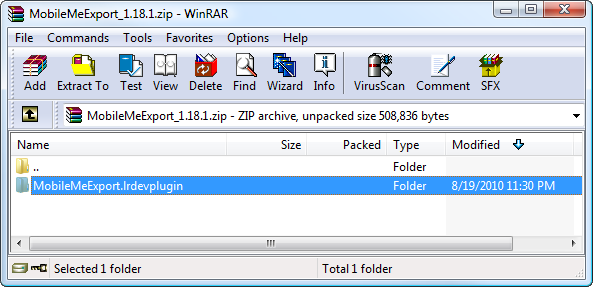
The ZIP archive you have downloaded contains a single folder with a bunch of various files inside. This folder is the plug-in. In our example, the folder name is, MobileMeExport.lrdevplugin*.
You can keep the plug-in anywhere in your user folder, you will just have to tell Lightroom where it is, so it can load the script files when the application starts.
I recommend creating a designated folder for all of your Lightroom plug-ins and keep them there. This way it's going to be easier to manage your plug-ins and install updates. Here are my suggestions:
| Windows XP, Vista, 7: | %APPDATA%\Adobe\Lightroom\Plugins |
|---|---|
| Mac OS: | ~/Library/Application Support/Adobe/Lightroom/Plugins/ |
Windows Installation
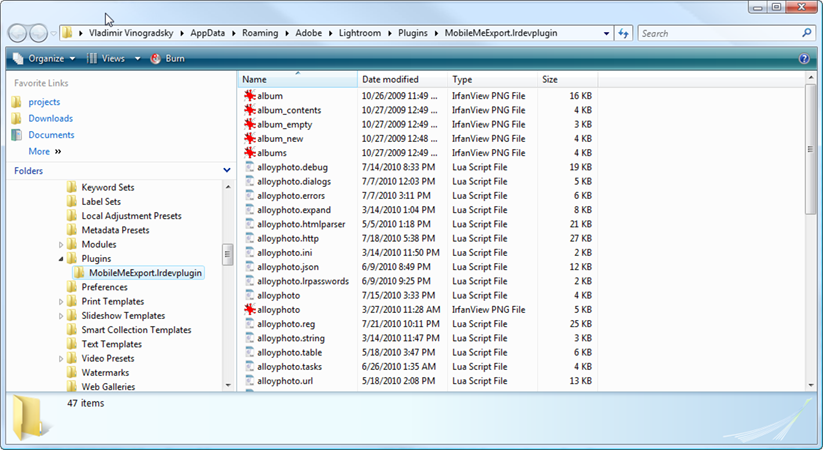
Install the plug-in by extracting the MobileMeExport.lrdevplugin* folder contained in the zipped package to %APPDATA%\Adobe\Lightroom\Plugins.

After extracting the files, your installation folder should look like this:
Installation on Mac OS
- Double click the downloaded ZIP archive to "unzip" the file. A MobileMeExport.lrdevplugin* folder will appear on the desktop (or, depending on the configuration, in the Downloads list).
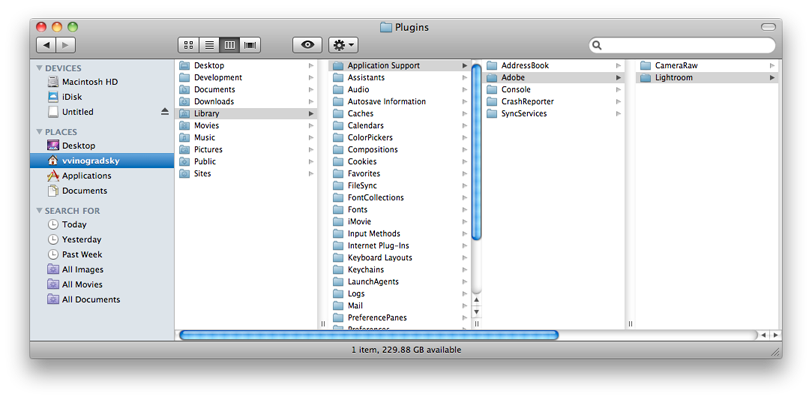
- Copy this folder to ~/Library/Application Support/Adobe/Lightroom/Plugins/. If this is the first plug-in you are installing, you would need to create the Plugins folder in your home directory | Library | Application Support | Adobe | Lightroom
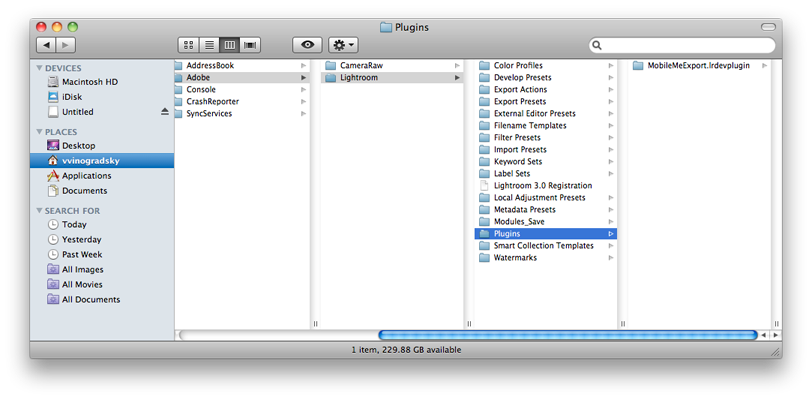
- Drag or copy the entire "MobileMeExport.lrdevplugin"* folder from your desktop inside the Plugins folder.
The following two screenshots illustrate how the folder contents should look like in Finder after the installation:
Adding the plug-in to Lightroom
- Start Lightroom and bring up the Plug-in Manager (File | Plug-in Manager...).
- Click Add
- Navigate to and select the MobileMeExport.lrdevplugin* folder. Click OK.
- The plug-in will need to add a number of metadata fields to your catalog, so you will be prompted for permissions to update the catalog. Click Update.
Now the plug-in is ready for use. MobileMe Gallery* should appear in the list of installed plug-ins in the Plug-in Manager, with a green ball next to it.
Activation
If you have purchased a commercial plug-in, you will need to activate it.
Select MobileMe Gallery* in the list of installed plug-ins on the left hand side. The Plug-in Info panel will be displayed on the right:

Click the Activate Plug-in... button, the Plug-in Activation window comes up.

Enter your first name, last name, and the serial number exactly as they appear in the registration e-mail from alloyphoto@alloyphoto.com. Then click Activate...
Once your information is validated, Lightroom will display a confirmation message:
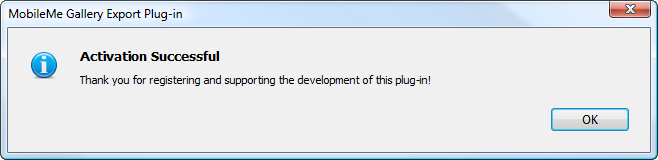
Now you can click Done to close the Plug-in Manager. Now you are ready to export your photos.


